

Your MacBook Screen's Corners Have Hidden Powers You're Probably Not Using
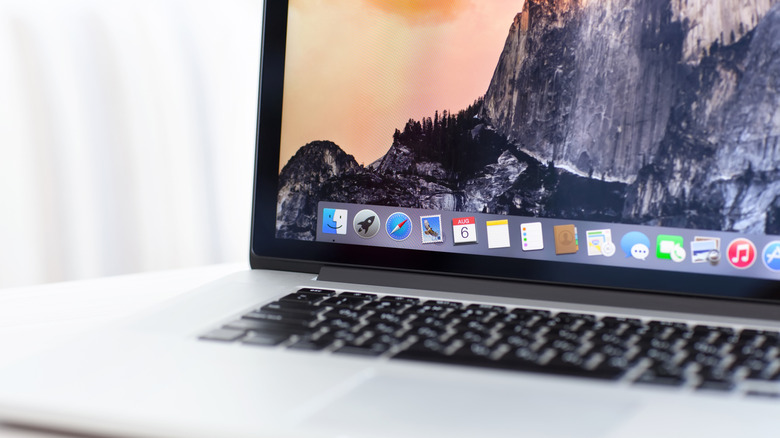
One of the fun things about owning a MacBook is discovering all the little features that Apple likes to include. In fact, macOS can provide users with so many options, overlooking them or even forgetting about some entirely can be pretty easy to do. With hidden settings that can instantly boost productivity and the like, it's not hard to lose track of everything that's meant to make your life easier, and that can be especially true for the semi-obscure feature known as Hot Corners.
If you're unfamiliar, Hot Corners has existed in one facet or another since macOS High Sierra, and it can be a quick way to access certain apps and commands directly from your desktop. For example, you can put your MacBook to sleep simply by dragging your cursor to a specific corner of the screen. There's already one action set up by default, but there are several different options available for adjusting the other corners of your screen, as well.
For those that value productivity, the Hot Corners feature is good for avoiding certain menus, and it can overall make certain processes faster once you get the hang of it. It may take some experimentation, but it's a pretty nifty feature, nonetheless. Though some settings can ruin a new MacBook experience, this one is worth checking out regardless of how long you've owned your machine. Getting this one going is rather straightforward, so we'll jump right in.
How do I use Hot Corners on my Mac?
It's actually pretty easy to overlook the Hot Corners feature, as the options for it are a bit buried in your system settings. However, macOS does have the Quick Note app set to the bottom-right corner of your screen by default, so getting a feel for Hot Corners is pretty simple. Just hover your cursor in the area and you'll see the corner of the Quick Note appear. Clicking it opens the app.
Apple provides 10 different items you can assign to each corner, such as bringing up your Lock Screen, accessing Mission Control, or even showing your Applications folder in a pop-up view.
If you want to assign different functions to different corners, follow these steps:
-
Navigate to the Apple menu in the top-left corner of your screen.
-
Select "System Settings."
-
Select "Desktop & Dock" from the left sidebar. You may need to scroll down.
-
Scroll down the settings in the right-hand column and select "Hot Corners" from the bottom.
-
A window will appear showing your MacBook display with drop-down menus near each corner. Choose an action for each corner, though note that you can leave any or all of the corners unassigned if you desire.
-
Select "Done" when finished.
You can also modify hot corners to open only when a specific key is pushed and the cursor is in the appropriate corner. Hold down Option, Control, Shift, or Command while assigning functions, and then you will need to hold the corresponding button when you move your cursor to a corner. Give it a try to see how it works — and while you're at it, you might want to check out the settings that can instantly make your MacBook perform better.